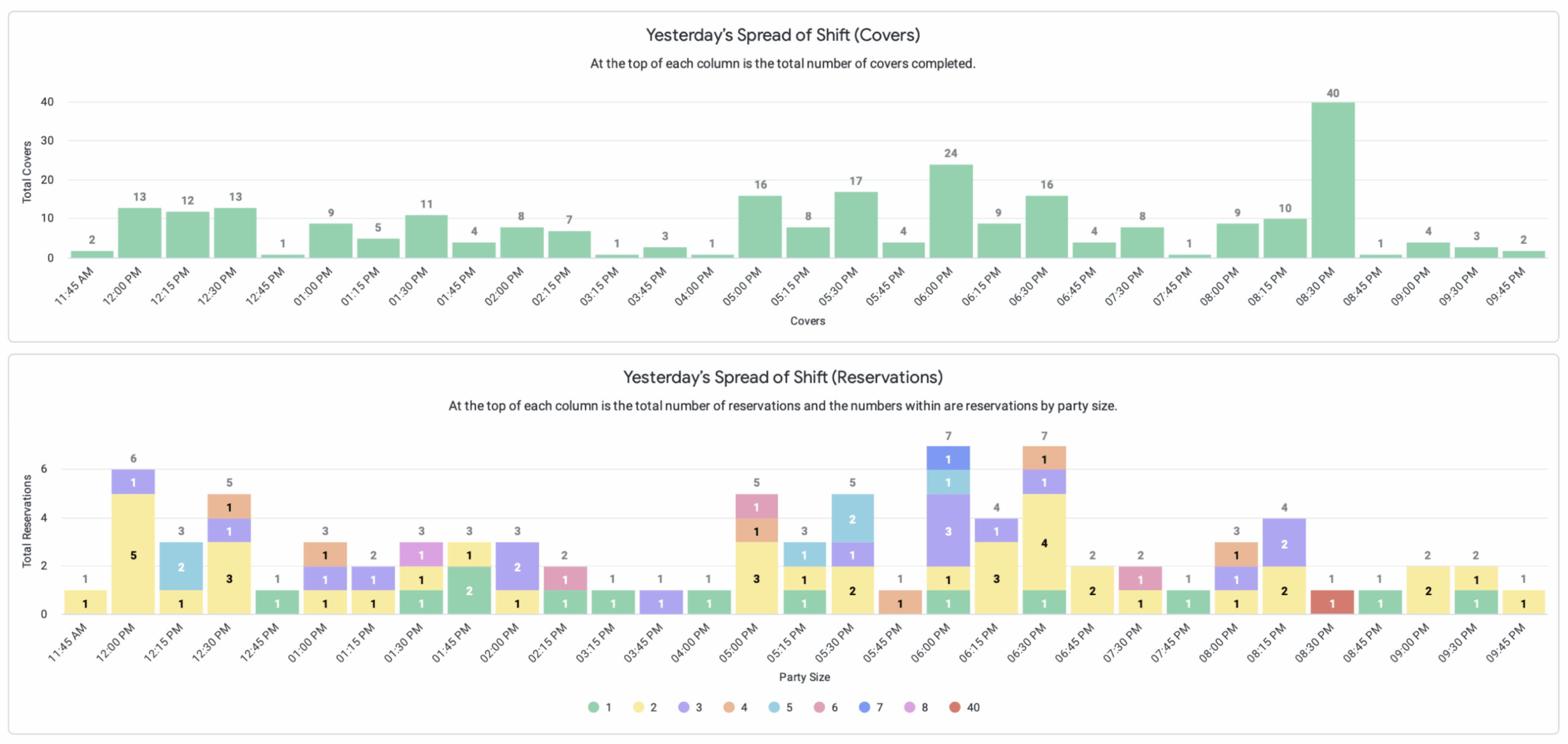
Have you ever created a column chart in Excel, only to find that the columns are too spaced out? It can be frustrating when your data visualization doesn’t look quite right. Luckily, there’s a simple solution to this common problem.
By adjusting the spacing between columns, you can make your chart more visually appealing and easier to read. In this guide, we’ll show you how to move column charts closer together in Excel, so you can create professional-looking visuals with ease.
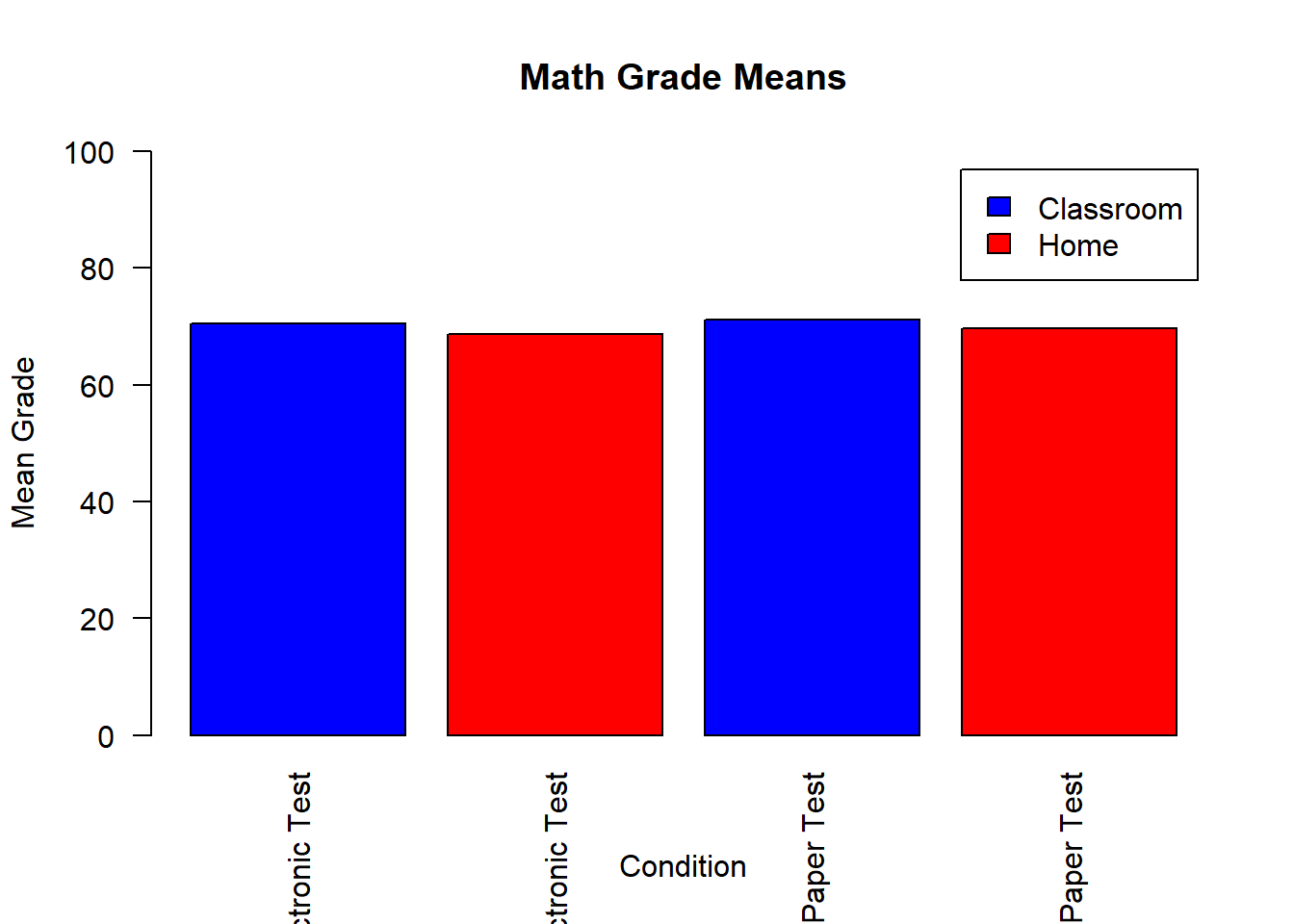
Move Column Charts Closer Together
Move Column Charts Closer Together
To start, select the column chart you want to adjust in Excel. Then, right-click on one of the columns to open the context menu. From there, choose “Format Data Series” to access the formatting options for your chart.
Next, navigate to the “Series Options” tab within the formatting menu. Look for the “Gap Width” setting, which controls the spacing between columns. By decreasing the gap width value, you can move the columns closer together to achieve the desired look for your chart.
Experiment with different gap width values until you find the spacing that works best for your data visualization. Once you’re satisfied with the appearance of your column chart, simply close the formatting menu to apply the changes. It’s that easy!
By following these simple steps, you can easily adjust the spacing between columns in Excel column charts. Whether you’re creating reports, presentations, or dashboards, this quick tip will help you enhance the visual impact of your data visualizations.